
Like it did for a lot of people on the planet, life became weird in early March 2020 thanks to the Coronavirus. We had the order from the UK government to stay at home and work from home if you possibly can. Both my partner and I can do our jobs from home, so we both did and as of March 2021, we still are. A reliable internet connection and stable WiFi signal both became very important, and unfortunately we started having issues. I think that I noticed them more than my partner did, but there you have it.
We live in a relatively small two bedroom Victorian terraced house in South East London. It has two large chimney stacks and thick brick walls. Our ISP is Virgin Media, a cable internet provider. The point of entry for the cable is at the front of the house, in an alcove next to the chimney stack at the front of the house, which is also where our television happens to live.
Unfortunately thanks to a combination of thick walls, impenetrable floors and the chimney stack, that wireless router was in pretty much the worst possible place in the house that it could be. A huge amount of the signal it put out was absorbed by the TV and the chimney stack. Pretty much the only location in the house where you could get a stable wireless signal was on the couch directly in front of the router and the master bedroom directly above it. I couldn’t get a WiFi signal in our kitchen less than ten metres away, in the second bedroom or the bathroom. To compound matters, the living room doesn’t have enough room for a computer desk and the bedrooms don’t either. The only place in the house which has any room to work from is at the top of the stairs on the landing so therefore, the computer has to live there. The signal at the top of the stairs was very weak but just about usable for some of the time but not all of it. You can’t do a full eight hour day of work on the sofa with your laptop balanced on your knees, it just isn’t practical so something needed to be done.
I looked at moving the router to a more suitable place but it wasn’t an option for these reasons:
- Power – the router is powered by a 12v AC adapter, so it needs to be close to a plug socket.
- Data – the cable that VM provided from the ingress point to the router is 1m, maybe 1.2m long, tops. Not only that, it’s also thick and inflexible so even if it was longer, it would be awkward to route and highly conspicuous.
- Mounting – like many consumer routers, the Virgin Super Hub 3 is designed to sit on a table top, not be mounted to the wall or ceiling.
Admittedly, this isn’t entirely the router’s fault. It’s an all-in-one unit which does WiFi and acts as an internet gateway so like with all all-in-ones, there has to be compromises in its design. The conditions it had been given to do it were the worst possible and even the best WiFi device in the world would have struggled given the same circumstances. However, what is the unit’s fault was, even when you ignore the WiFi issues, just how unreliable it was. Outside of WiFi, the most biggest issues I had with it were:
- Every so often everything connected to it would just stop lose connectivity to the network, apart from two devices which have static IP addresses. The devices still reported that they were connected to the WiFi network but all of a sudden they’d acquired 169 addresses meaning they couldn’t get a DHCP lease. This suggested to me that the router’s DHCP daemon was crashing. The only way to fix it was to power cycle the router, which is really annoying in the middle of the working day when you have a Teams meeting. Giving everything static IPs wasn’t really an option as I still have to go outside and connect my phones and laptop to other wireless networks every once in a while.
- It was absolutely terrible at band steering; every device that connected to it got put onto 2.4GHz, which is completely saturated where we live. In the end, I had to create separate SSIDs for 2.4GHz and 5GHz just to get something resembling half decent wireless performance.
- When devices were finally forced onto 5GHz, the router always chose the lowest and busiest channel. While 5GHz isn’t as congested as 2.4GHz thanks to the laws of physics, I can still see at least two or three 5GHz networks that weren’t mine, all on the same channel I was using. That didn’t help either.
When we first moved into the house, this was annoying but we could live with it. Neither of us used the computer at the top of the stairs very much, it was usually just about usable and most of our internet traffic came from the Fire TV attached to the TV and from our mobile phones which were mostly used from where the wireless signal was strongest anyway. However when working from home every day became a thing and I kept losing my connection to the wireless network, it got more and more frustrating and in the end I snapped. I started researching alternative solutions.
I decided that I wanted to have a separate router and wireless access point. Just replacing the Virgin router with another all-in-one wireless router might fix the reliability problems but most routers still need wall warts for power, meaning the location of the device would still be limited. At least with a decent wireless access point, I could use a Power Over Ethernet (PoE) Injector and have a single cable providing power and data. I wanted to avoid consumer brands like Linksys, Netgear, Belkin and D-Link as I’ve had bad experiences with them all and they seem more focused on routers than access points these days. I looked pretty hard at Ubquiti (Unifi) and TPlink; both are quite big in the SOHO market and Unifi in particular has a reputation for making equipment which is good value and has high performance. I came pretty close to buying a UAP-AC-Lite but the requirement for a controller, even if it’s powered off for most of the time, put me off. Then on a whim I decided to look at what Aruba do. I’m aware of the Instant Access Point (IAP) range having used it at work so I looked to see how much an access point in the IAP range cost. Unfortunately, it was a lot more than I wanted to spend. It was then I noticed a very low cost Aruba AP in a product range I hadn’t heard of before, called InstantOn.
TLDR: Bad router in a bad position made for a bad WiFi connection. Who’d have thought?
InstantOn is Aruba’s cloud managed offering, designed for SOHO environments. It offers an interface very similar to Meraki, where you get a top-down view of your network from a web portal and set it up using that. Unlike Meraki though, you don’t require a subscription to run the device and it won’t die if you decide to stop paying for support. They have a range of switches and wireless access points which are managed through this portal. The switches seem to be the successor to the OfficeConnect series, the current model is the 1930, which seems to follow on from the 1920/1820 in the old OfficeConnect range and from the Procurve 1810/1910. They sell a range of switches with 8, 24 and 48 ports in PoE and non-PoE versions. The 8 port switches have 1gbit SFP ports, while the 24 port and 48 port switches have 10gbps SFP+ ports. They have some enterprise level features, such as 802.1q VLAN support, 802.1x port authentication, flow control, spanning tree, LLDP, port mirroring and port aggregation. The 19×0 series switches used to have some L3 features in them but the spec sheet is unclear as to whether these do as well; there is a section in there which talks about IPv4 routing but underneath that talks about a DHCP server and nothing else. I get the impression that these switches support static routes but not OSPF, but don’t quote me on that.
They also have a range of wireless access points. They have 802.11ac Wave 2 and 802.11ax models. All are dual band APs and support MIMO. Some are 2×2, some are 3×3. All support power from either an 802.1af PoE source or from a 12v power adapter. They also have 802.1q VLAN support, can broadcast multiple SSIDs, can support guest networks and have a guest network portal login. They support enterprise level authentication with a RADIUS server and support WPA2 and WPA3 security. Perhaps a little unusually for an access point, these things can also act as an Internet gateway and perimeter firewall for your network as well.
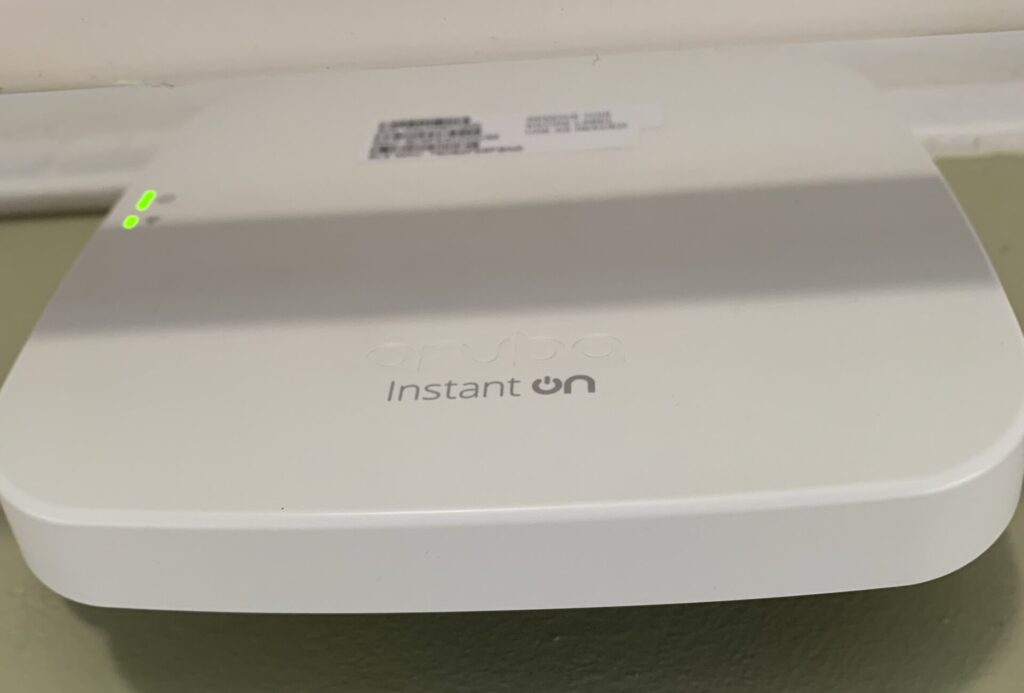
I bought an AP11, which is their most basic AP and that’s what I’m finally going to talk about today. It’s the most basic model in their range, an 802.11ac Wave 2 2×2 MIMO device with a maximum theoretical throughout of 867mbps at 5GHz and 300mpbs at 2.4 GHz. It has a single gigabit Ethernet port on it and can be powered either using 802.3af PoE or a 12v AC adapter. Either way, the AP doesn’t come with a power source so you need to acquire that separately. Aruba sell one but any switch or PoE injector that supports the 802.3af PoE+ standard will power it. It can support up to 50 clients simultaneously and includes brackets which can mount the device to the wall or ceiling. You can find a full spec sheet on Aruba’s website.
As mentioned, this is a cloud managed device so to use it, you must register an account with the Aruba InstantOn Portal. You can do this through the InstantOn app on an iOS or Android device, or using their website. Once you’re registered, you will be asked to set up a new site. You’ll be asked if you’re setting up wireless access points, switches or both. You’ll be asked for the serial number of the device and it will go away and register itself with InstantOn and you’ll be able to do further setup.
Once you’ve set up a site in the Portal and the AP is registered, you’ll be able to define your networks. First you’ll need to set up a wired network on VLAN 1, for the management of your networks. If you need further wired networks, you can set those up as well. You can then set up some wireless network SSIDs.
You’ll be asked first of all if it’s a Employee or Guest network. The difference between the two is authentication types and encryption: A guest network can be open, can use a PSK or it can use a Captive Web Portal (CWP). An employee network can use a PSK or it can use a RADIUS Server to authenticate its users. If you’re using a PSK, you can turn on WPA3 for those devices that support it.
The next page is the Options page. On here, you can hide the SSID, turn on an option to optimise the network for video streaming and to limit the amount of bandwidth a client or a network has available to it. You can set the SSID to bridge itself on the wired network that it’s connected to or if its clients use NAT instead. You can also set the frequency of the wireless network here as well, to 2.4GHz, 5GHz or both.
After that is the Schedule page, where you can define what days and what time of day a wireless network is transmitted.
Then you have the Restrictions page, where you can restrict whether devices connected to the SSID can talk to other devices on that SSID or not.
Finally, you have the Applications page which allows you to restrict what kind of applications users connected to that network can access.
Once those options are all set, any wireless access point connected to that site will download those networks and start broadcasting them to the world. So far, so good.
Where it starts to get a little more interesting is the management portal itself. This is a screenshot of the portal website, but the same options are in the app as well:
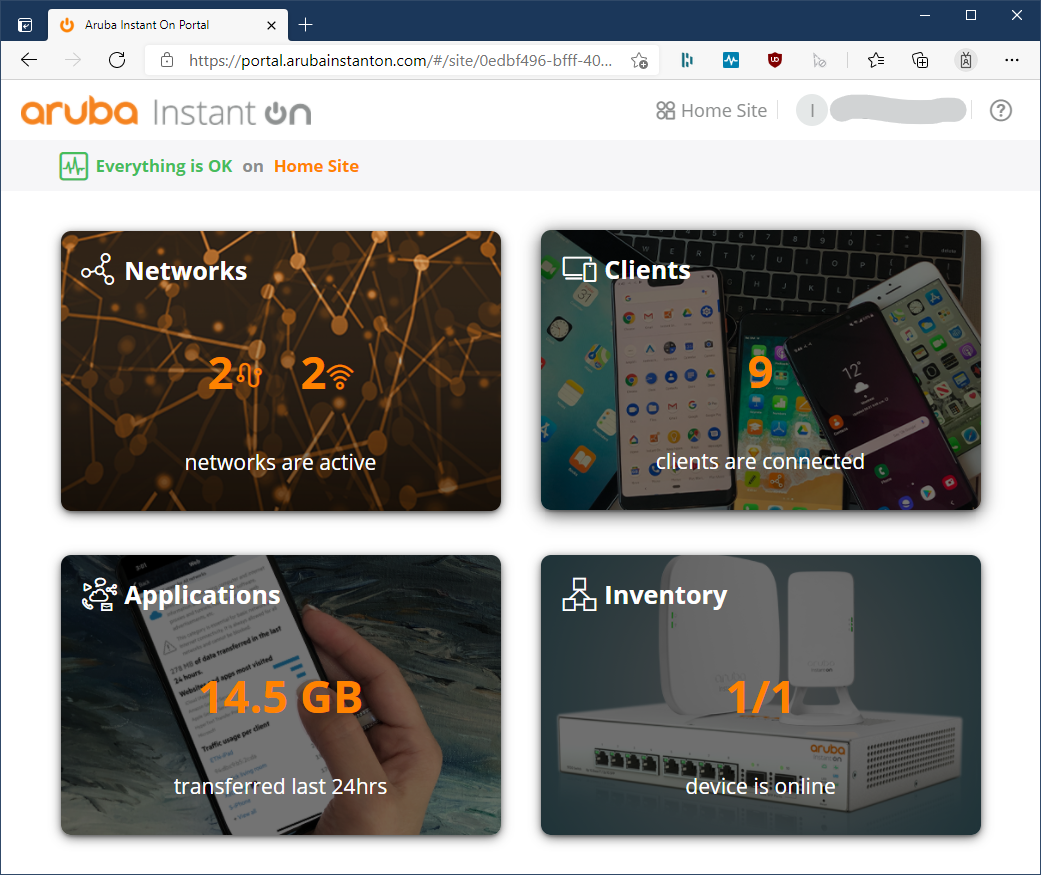
That gives you an overview of your infrastructure. You can see that I have two wireless and two wired networks define, that there are nine clients connected to the InstantOn infrastructure, there is one Instant On device in the inventory and that it’s online and that 14.5GB of data has passed over the network in the last 24 hours.
Clicking on the Networks button gets you this:
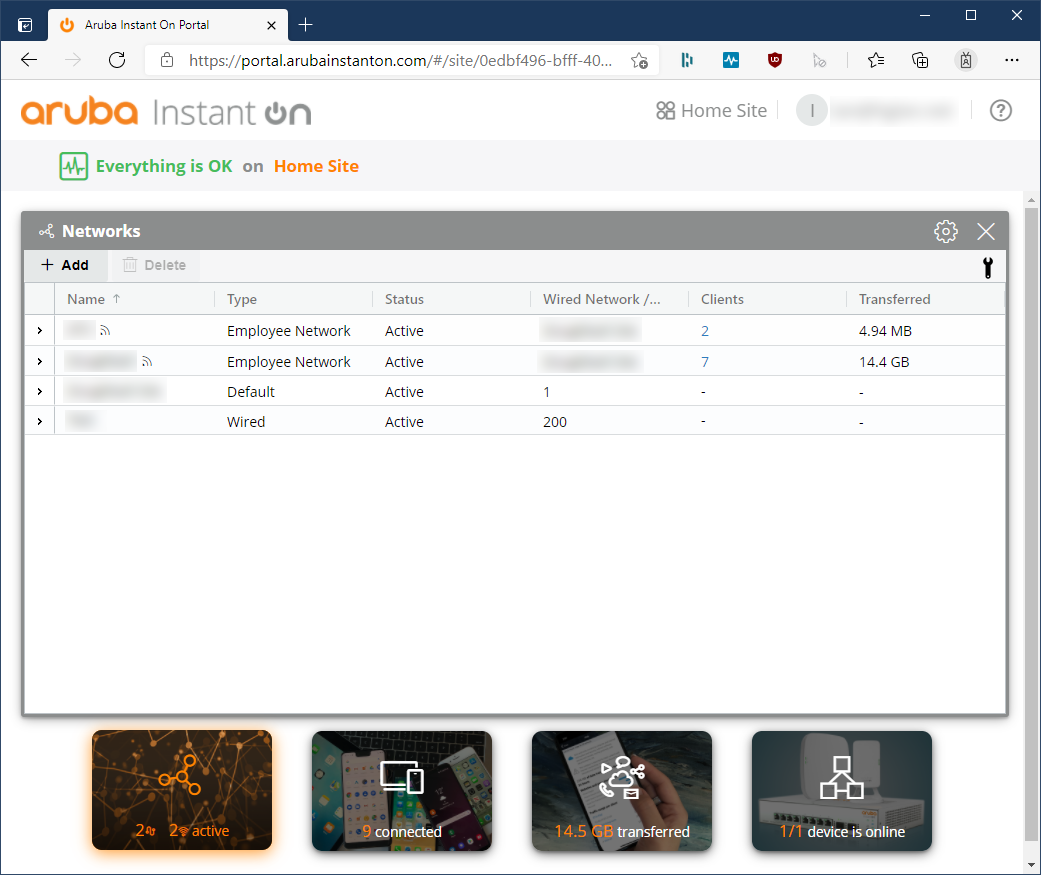
This gives you an overview of your wired and wireless networks. Wireless ones have the little wireless icon next to them. If you expand one of those networks, you can change the options for it. You can also add additional networks here if you wish.
Clicking on clients gets you this screen:
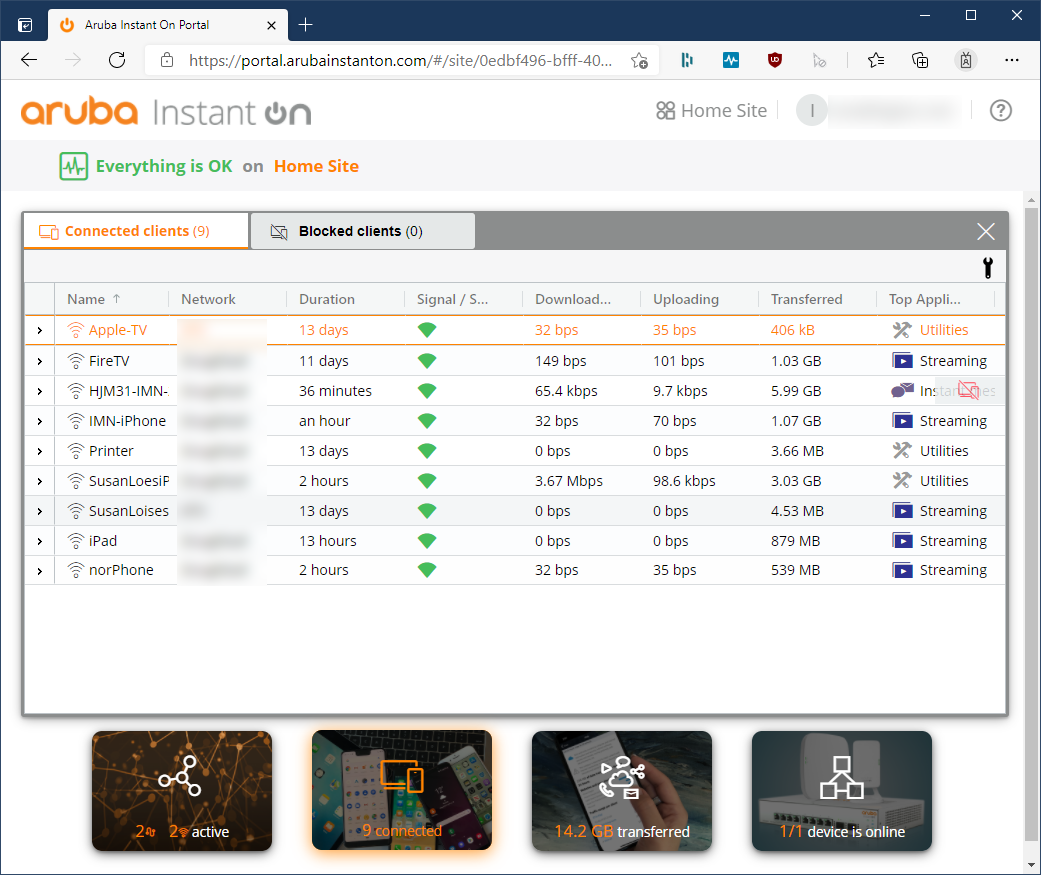
You get an overview of the clients connected to you network, the network that they’re connected to, the amount of bandwidth they’ve consumed and their top application. You can get more details about the clients connected to the network by expanding them:
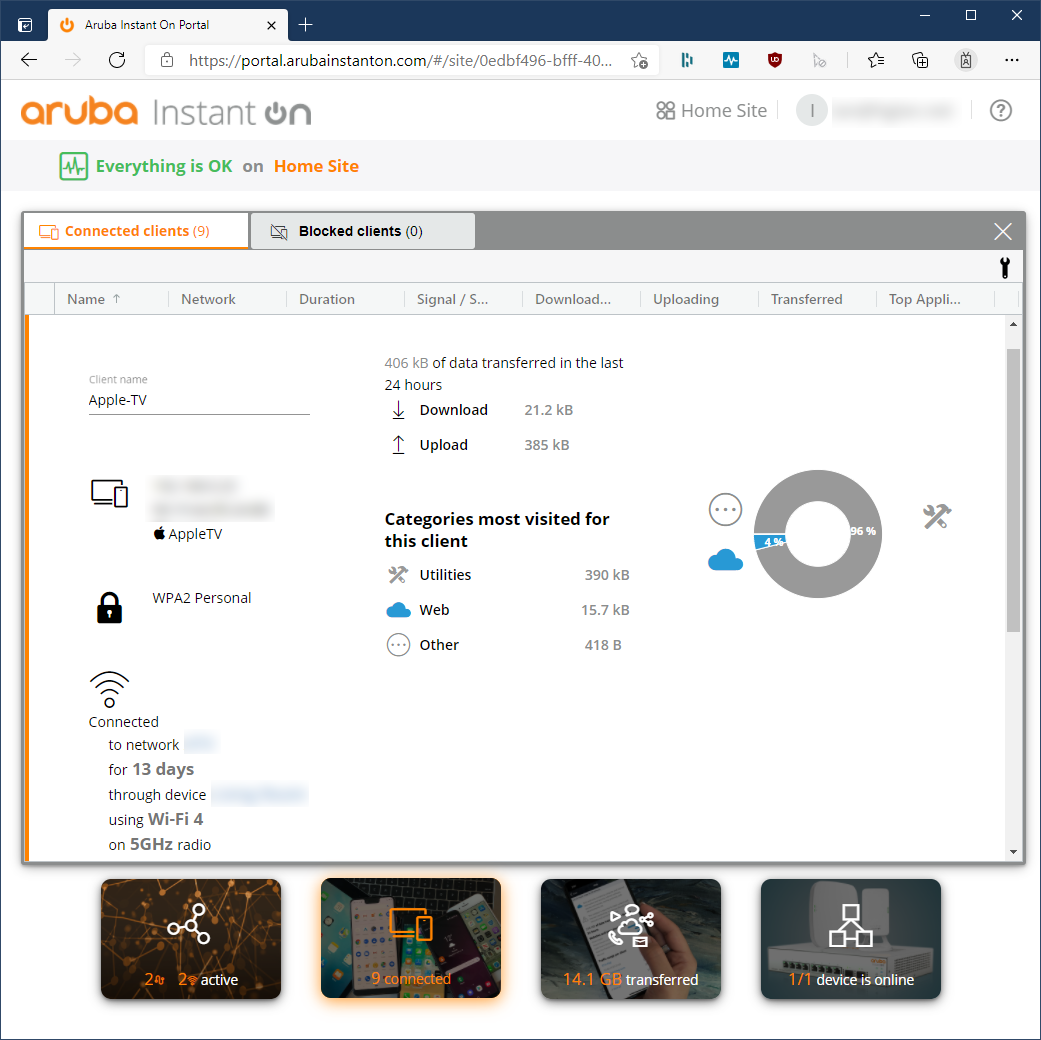
You can also use this page to block clients from your network as well.
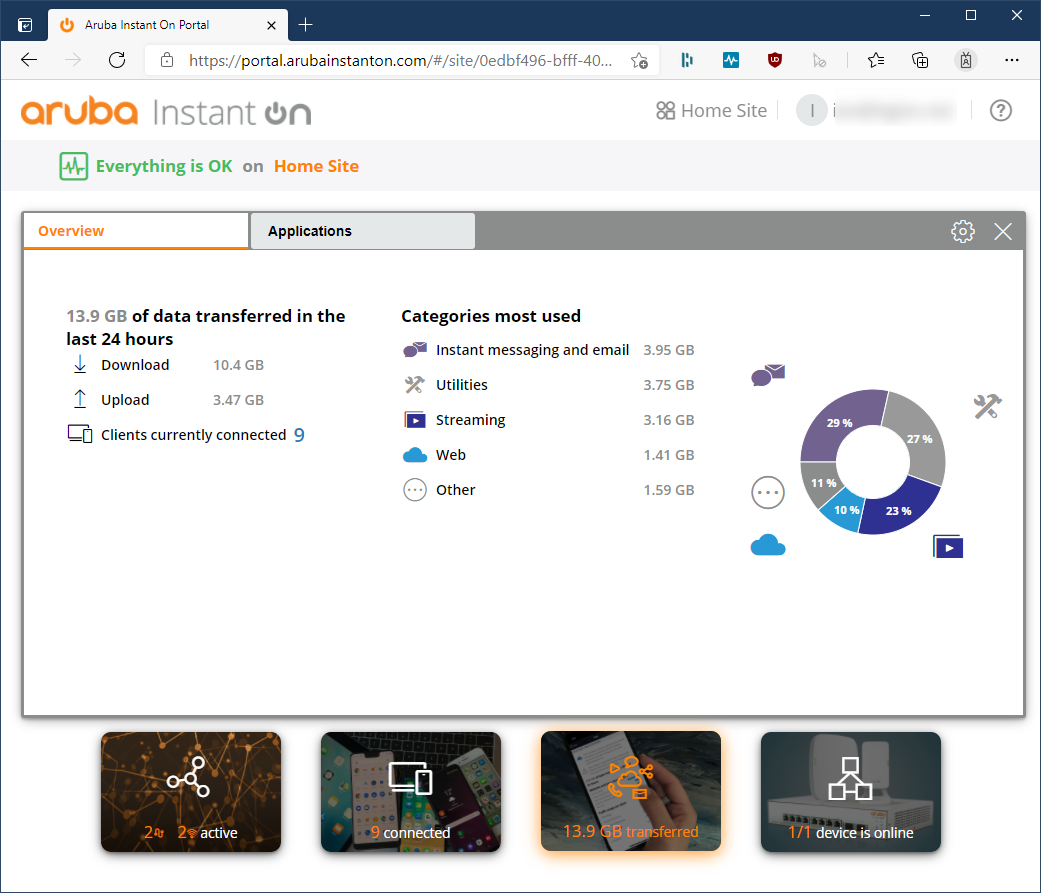
Clicking on Applications gives you an overview of what kind of traffic has passed over your network:
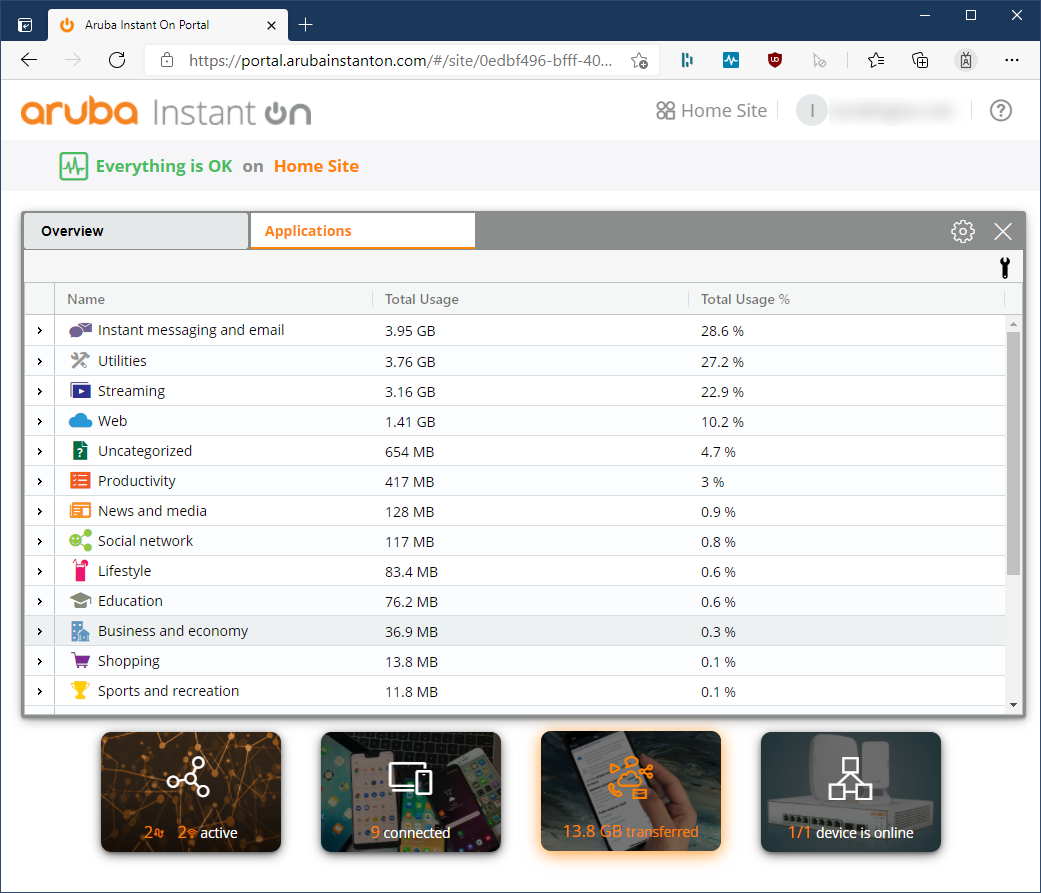
Clicking on the Applications tab gets you more details:
And each application can be expanded:
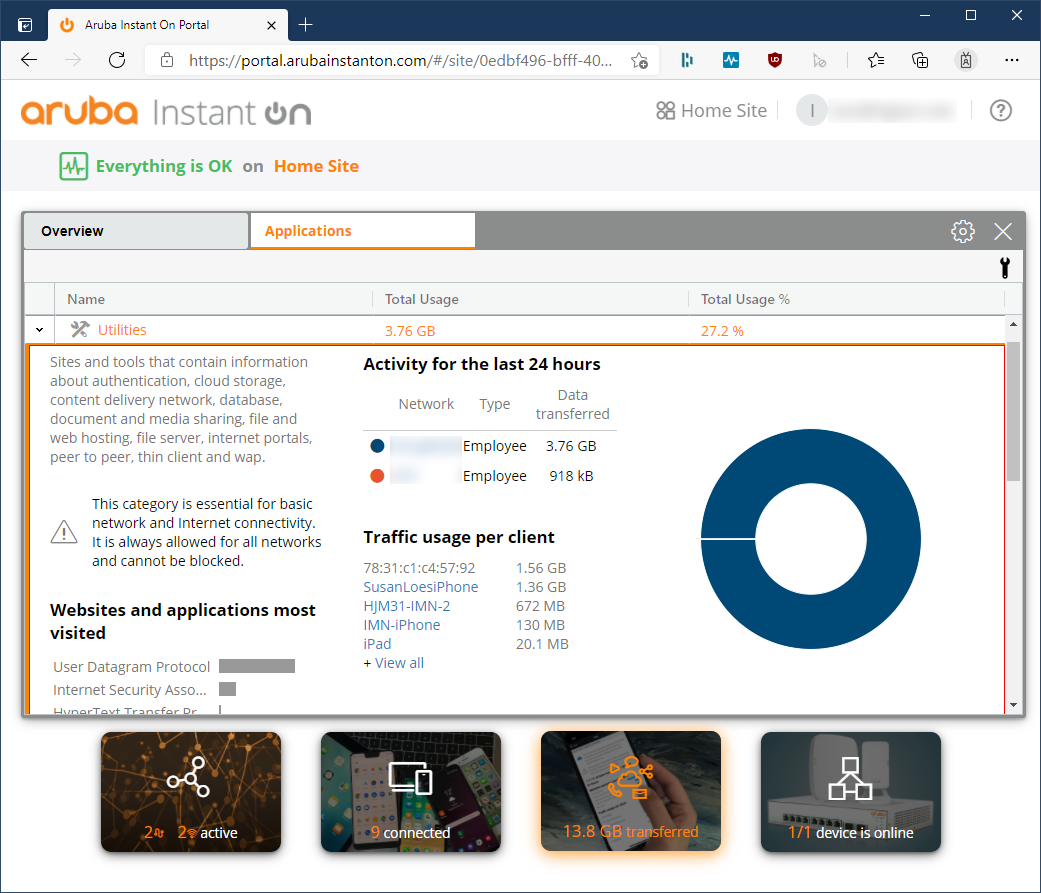
That shows you the specific application being used, the network it’s been used on and the device using it. If the device isn’t currently connected to the network, you don’t see its host name, you just see a greyed out MAC address.
Finally, we have the devices page:
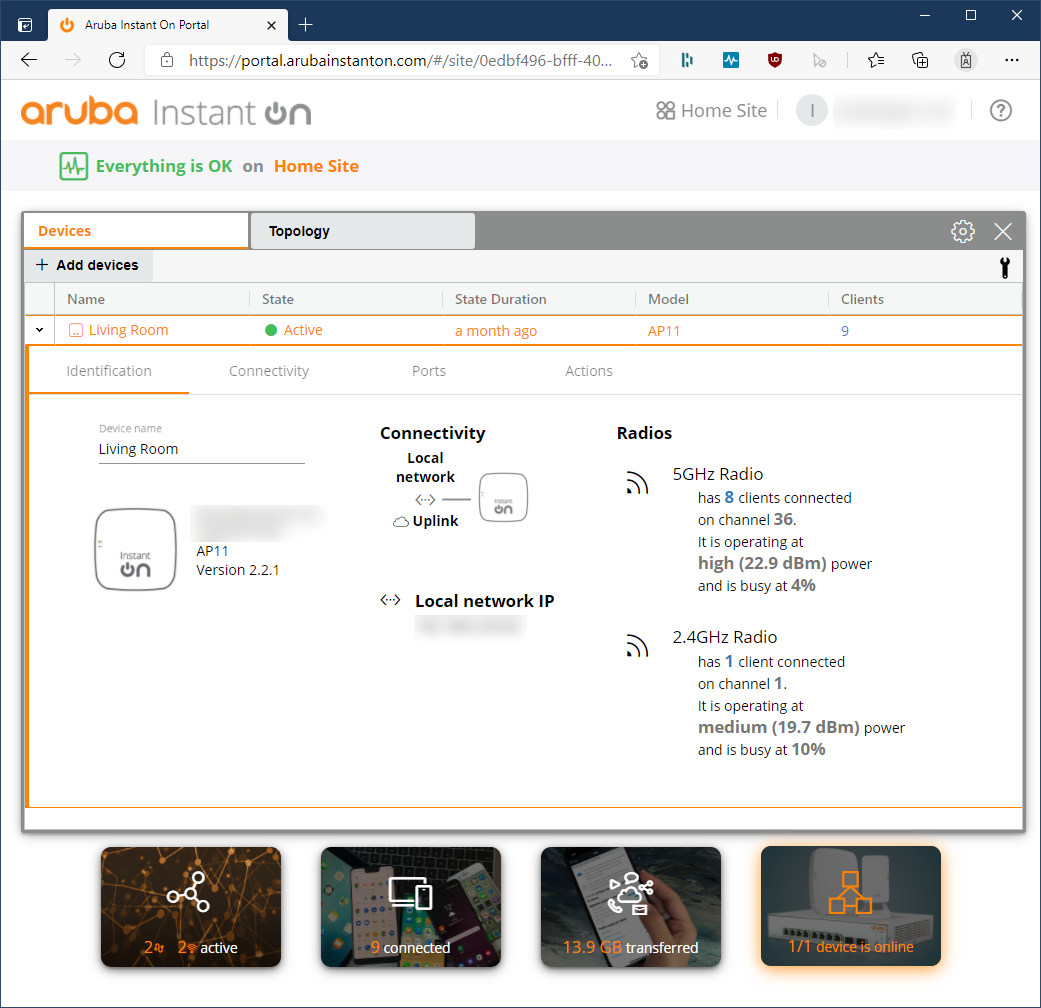
That shows you an overview of the InstantOn devices on your network. I only have one device at present, so I’m showing the expanded view. It shows you a nice overview of all the clients connected to the AP and the radio that they’re using. There’s also a graphical topology page:

which would be a lot more interesting if I had more InstantOn devices. You can also set options for the radios by clicking on the cog and choosing “Radio Management”
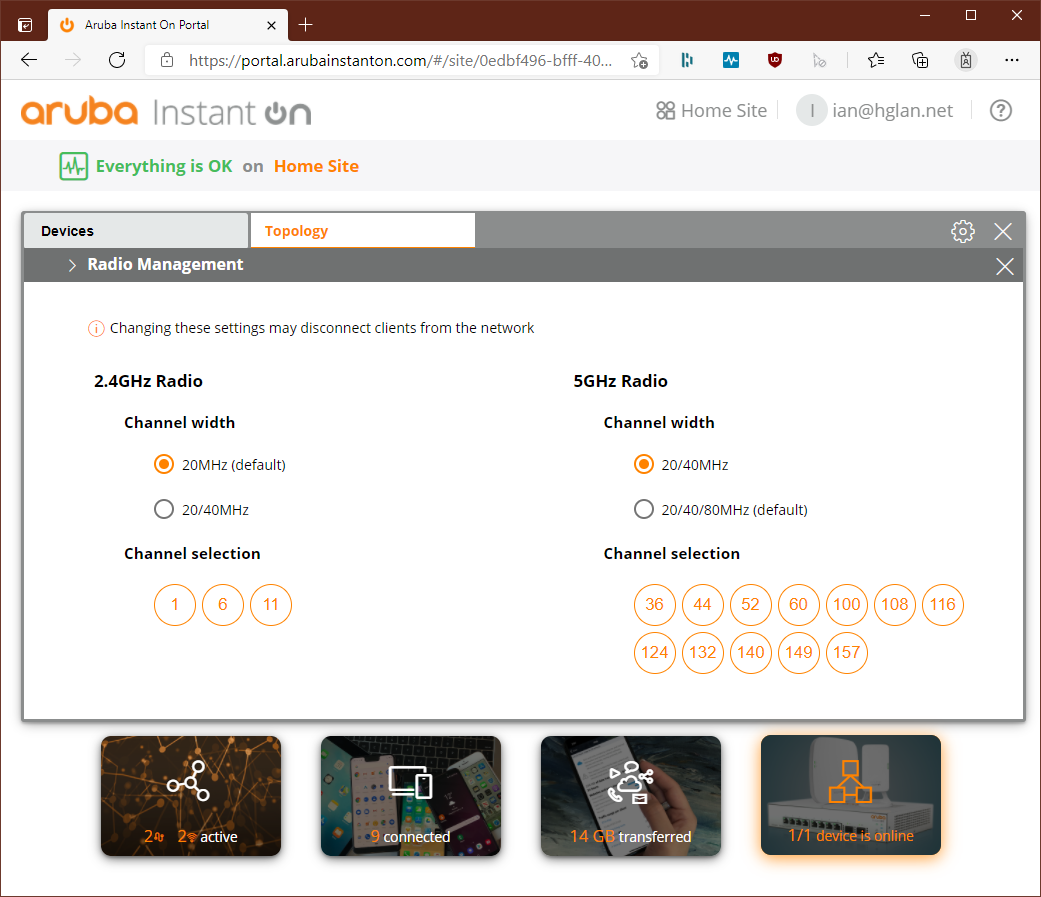
You can choose your channel width and the range of channels that you want your AP to use from here.
So that’s what the interface looks like. I suppose the next question has to be, what do I think of it all?
First of all, I think it’s important to bear in mind that this is a SOHO product. Although the interface is similar in a lot of ways to Meraki’s, it’s not intended to drive a network for a multi-national company. Each site is restricted to up to 25 devices, either switches or APs or a combination thereof. That said, you can have multiple sites. I’m not sure how many, exactly, but I think the number is relatively high, possibly in the hundreds. That’s an important limitation and probably would be a deal breaker for a lot of people but arguably, if you want more than 25 access points on a site, you’re not who Aruba are aiming this product at; you’re better looking at the Instant Access Point range.
The options that are presented for creating a SSID are thorough and well thought out. I think that they cover most scenarios for the markets that these devices are aimed at. You wouldn’t want to use it in a big shop or a large office, but this isn’t what these devices are designed for. It gives you a nice overview of the devices connected to your network and allows you to kick people off very easily if you want to. The options for the guest portals are pretty comprehensive; you can either use its own built-in CWP which can be customised to a certain extent, or you can connect it to third party services. The bandwidth restriction options are again fairly basic but probably adequate for its market. It’s mostly good enough. Again, if you want more, look at the IAPs.
That all said, I think the thing I find most lacking about InstantOn is the Application management. There are the beginnings of a really nice L7 management system here and some interesting details about data consumption. However, even for the market it’s aimed at, in my opinion it’s a little too basic. There are things which I think that could be improved. These are:
- It only shows data for the last 24 hours. I’m not asking for months of browsing records, but the ability to view a few weeks or a couple of months of consumption information could be useful so that you can spot trends.
- Being able to view which websites and applications have been accessed is useful, but you’re not getting very much information. You can only view the top five most used sites underneath each category, so for example, under Streaming right now I can see iTunes, Netflix, Prime, ISOs and Youtube. I know that we’ve used more than that (iPlayer, Vimeo and Spotify come immediately to mind) but I can’t see anything else underneath that top five. Being able to view more information would be useful.
- There aren’t that many categories defined, and you can’t define your own.
- Being able to block an application is potentially useful, but the implementation is heavy handed. You can block streaming sites, but you can’t block specific sites underneath that. It’s the entire category or nothing
Overall though, I like the InstantOn portal a lot. Everything with it is well laid out, reasonably easy to find and straightforward to configure. I think that Aruba have definitely taken a leaf from Meraki’s book here and created an interface from the ground up that an average human being can understand. Coming from the sometimes rather byzantine interface that an Aruba Instant Cluster offers and the often downright incomprehensible Mobility Controller, it’s a real breath of fresh air and I hope that at least some of this gets carried over to their other two wireless product lines.
And what about the hardware? Well, it’s a nice small unit with very neutral styling. It has a subtle Aruba logo etched on it and a silk screened InstantOn logo. It also has discrete green status LEDs which can be turned off if you want. What I’m trying to say is that it doesn’t stand out too much; the styling of the Unifi UAPs was something else that put me off them, they’re a bit more garish.
I’m not going to run performance benchmarks on this unit. I don’t have anything to compare it to or the equipment to run consistent benchmarks. I will say that it puts out a strong signal; sitting maybe three metres from it my laptop reports it’s getting a signal with -42 dbm strength. The access point also is considerably better at band steering than the Virgin Media router. The only devices that are being put onto 2.4GHz are those which don’t support 5GHz. It’s better at choosing quieter channels to operate on as well, at the moment it’s using 80MHz channels and it’s put itself onto channel 52. The signal is reaching more parts of the house as well; I get a strong and stable signal in my kitchen, in the entire living room area and in both bedrooms. It’s still a tad weaker at the top of the stairs than I’d like, but it’s at least stable. Since it’s cloud managed, the device keeps its firmware up to date without any interaction from me.
It’s improved the reliability of my network considerably. I have it in bridged mode, it doesn’t have any firewall or NAT roles at the moment so the Virgin Super Hub is still doing that. I haven’t had to reset the AP11 once since I’ve put it in. Interestingly, the uptime on the Virgin router has also improved, I’m having to reset that less frequently (although still occasionally) so I’m wondering if it’s either heat or CPU constrained and turning its wireless radios off has given it a bit more headroom to act as an internet gateway? Possibly, who knows?
In terms of network performance, on paper at least the AP11 is slower than the Virgin router it’s replaced as it’s a 2×2 MIMO device instead of a 3×3, but practically speaking I don’t notice the difference because:
- I don’t often copy information between the devices on my LAN
- The bandwidth it provides is still considerably higher than my 100mbps internet connection
- Devices which actually support 3×3 MIMO are comparatively rare anyway. The only device on my network that does is a MacBook Pro I think, everything else I’ve got is either 2×2 or 1×1.
When I bought the AP11, it cost a little over £75 plus another £15 for a PoE+ injector. Was it worth it? Yes, in my opinion, absolutely it was. I’m very pleased with the improvements in reliability that this device has brought to my network and despite the limitations with application monitoring, I like the InstantOn service a lot. If you’re in the market for a separate wireless access point, I can highly recommend this one.

Comments